
Slack Notifications
Send Sitepager scan results to Slack, where your team already works. Choose a channel once, and Sitepager posts results there automatically.
Where to find it
Section titled “Where to find it”Go to Settings → Notifications. Slack and Email are on the same page.
Setting it up
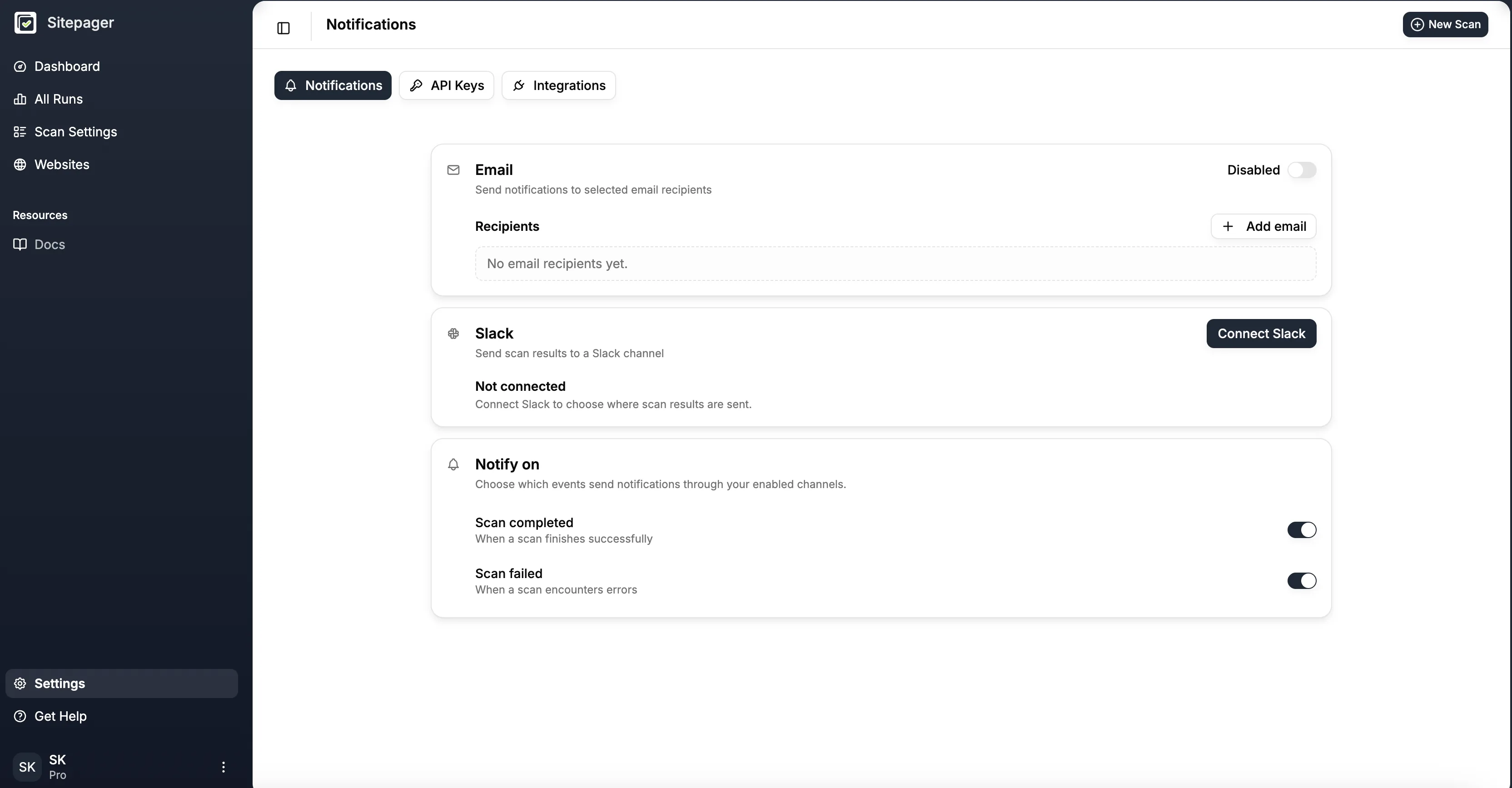
Section titled “Setting it up”Connect Slack
Click Connect Slack. Authorize the Sitepager app in your Slack workspace. You return to Sitepager with Slack connected.
Some Slack workspaces require admin approval for new apps. If yours does, Slack sends the request to an administrator.
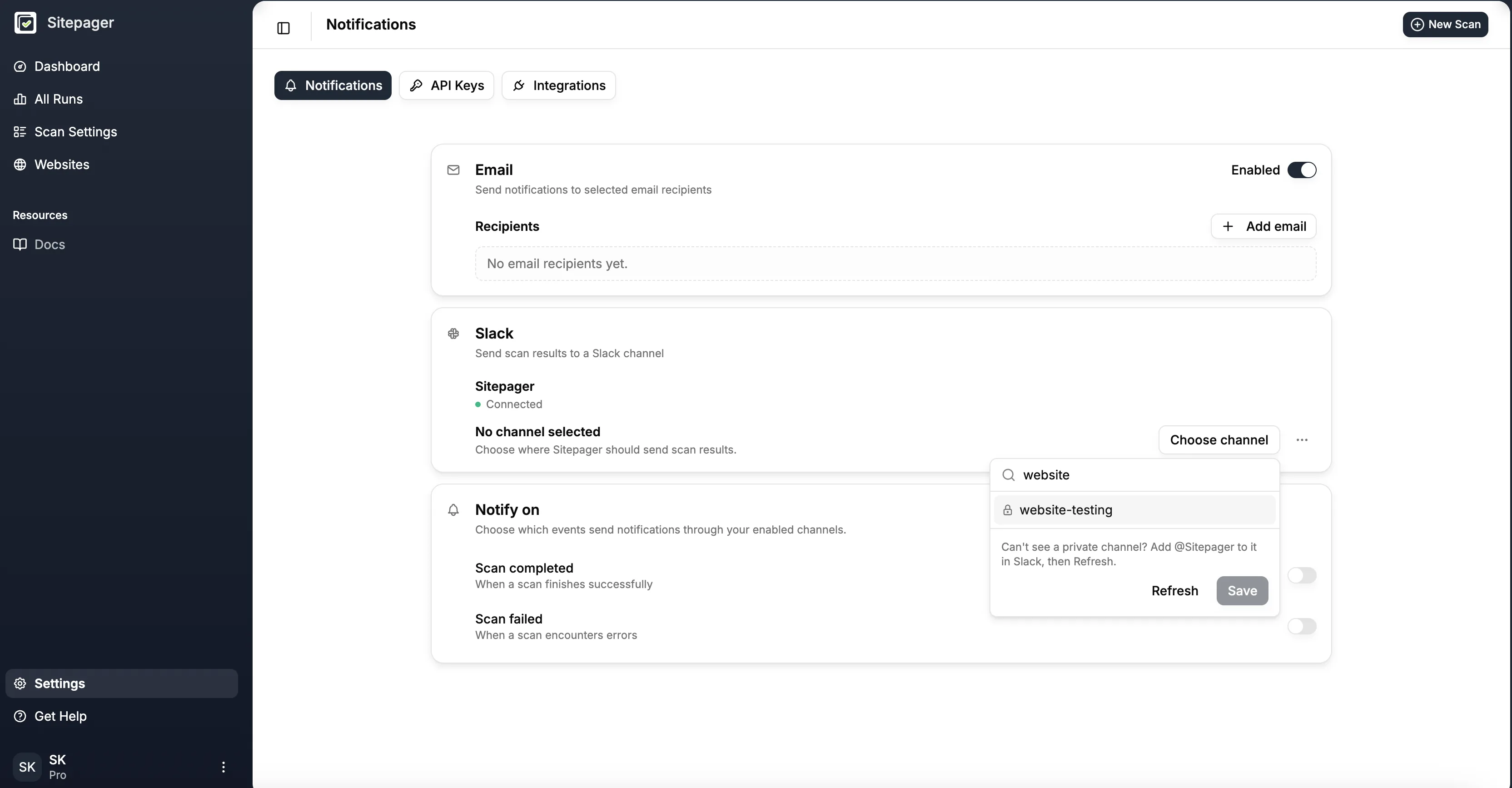
Choose a channel
Click Choose channel. Search for the channel. Select it. Click Save.
Now open the ••• menu and click Send test message. A message in the channel confirms the setup.
Private channels
Sitepager must be a member of a private channel to see it.
- In Slack, add @Sitepager to the channel.
- In Sitepager, open the channel list and click Refresh.
- Select the channel. Click Save.
Public channels need no invite.
What Sitepager sends
Section titled “What Sitepager sends”| Notification | Sent when |
|---|---|
| Scan completed | A scan finishes |
| Scan failed | A scan could not run |
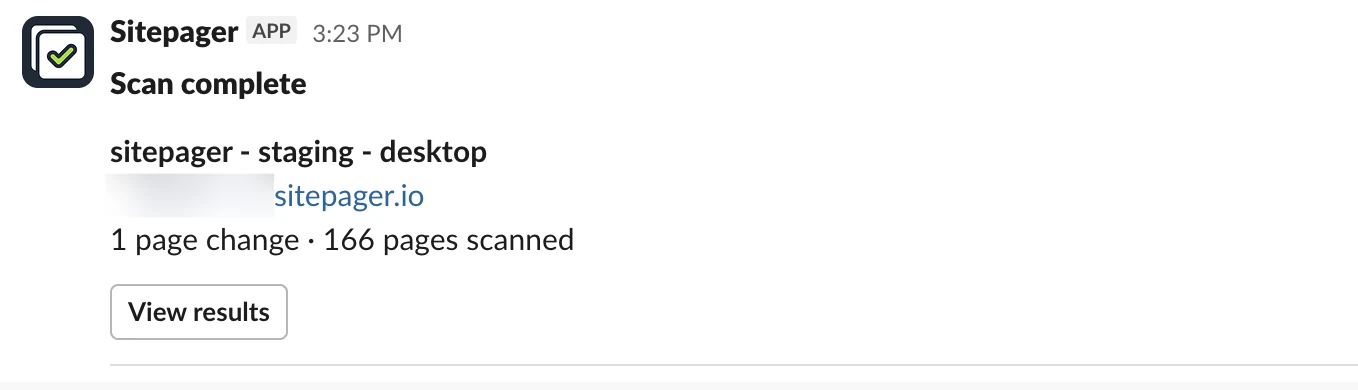
A completed notification names the scan and the site. It shows the main findings. It links to the full results.
Batch runs send one message when the batch finishes. Each scan is summarized inside it. Individual completion messages are skipped.
Choose which events send notifications under Notify on, on the same page. Those settings apply to Email and Slack.
Email and Slack work independently
Section titled “Email and Slack work independently”Email and Slack have separate switches.
- Turn Slack notifications off to pause Slack. Slack stays connected. The channel stays selected.
- Turn Email notifications off to pause email. Your recipients stay saved.
- Turn an event off under Notify on to silence it on both.
Switch either one back on to resume. There is nothing to re-enter.
Changing the channel
Section titled “Changing the channel”Click Change channel on the Slack card. Select the new channel. Click Save. You do not need to reconnect Slack.
For a private channel, add @Sitepager to it in Slack first. Then click Refresh in the channel list.
If Sitepager loses access to a channel, the card reads:
Sitepager can’t access this channel anymore. Add @Sitepager back to it in Slack, or choose another.
If the channel still exists, add @Sitepager back in Slack and refresh the channel list. If the channel is gone, choose another one. You do not need to reconnect Slack.
Disconnecting Slack
Section titled “Disconnecting Slack”Pause delivery. Turn the Slack notifications switch off. Slack stays connected. Nothing is sent until you switch it back on.
Disconnect Slack. Open the ••• menu and click Disconnect. This removes the Slack connection. You can reconnect anytime.
Send a test message after setup changes. One click in the ••• menu confirms the channel still receives messages.
Pair Slack with Auto run on publish. Sitepager can run automatically when you publish or deploy, then send the result to Slack.