
Fix Webflow Issues with AI
This guide assumes you’ve read Scan, Fix, Verify with AI. Below is what changes when your site is on Webflow: a second MCP server, plan prompts that use Webflow’s content, and a publish step before verification.
Requirements
Section titled “Requirements”Before starting, make sure you have:
- Everything from the Scan, Fix, Verify with AI requirements
- The Sitepager MCP server connected to your AI assistant
- The Webflow MCP server connected to your AI assistant
- Your Webflow site configured for the scan
For Webflow MCP setup, see the Webflow MCP documentation.
How the two tools work together
Section titled “How the two tools work together”On Webflow, two MCP servers work together. The Sitepager MCP and Webflow MCP handle different parts of the workflow.
Sitepager scans your published site and surfaces:
- Broken internal and external links
- Missing metadata or headings
- Missing image alt text
- Visual differences against the baseline
- Pages added or removed since your last scan
- Optional Lighthouse diagnostic reports
Webflow MCP allows your AI assistant to modify your Webflow project, including:
- Updating page SEO settings
- Fixing link URLs
- Adjusting heading hierarchy
- Adding alt text
- Editing CMS content
Your assistant reads Sitepager scan results, proposes fixes, and applies approved changes. You remain in control of every step.
Plan prompts for Webflow sites
Section titled “Plan prompts for Webflow sites”The core workflow is covered in Scan, Fix, Verify with AI. What changes on Webflow is the plan step. With Webflow MCP connected, your assistant can locate the specific Webflow element that needs updating and read actual page content before proposing changes.
Broken links
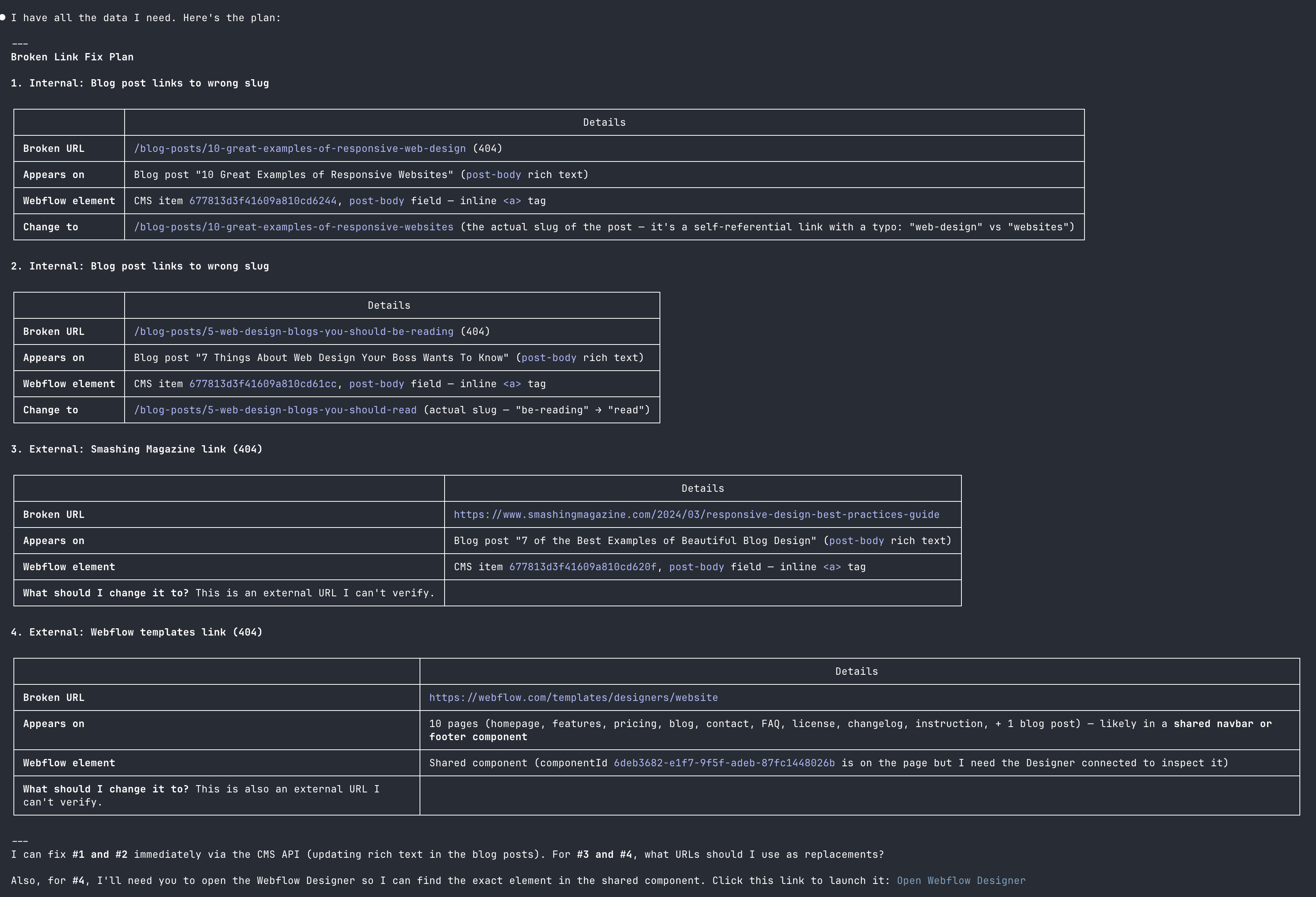
Section titled “Broken links”For broken links, your assistant needs to find the Webflow element containing the link, not just the URL.
Your assistant identifies not just which pages have broken links but the specific Webflow element that needs updating. For external links where the correct replacement is unclear, it will ask you rather than guess.
SEO titles and metadata
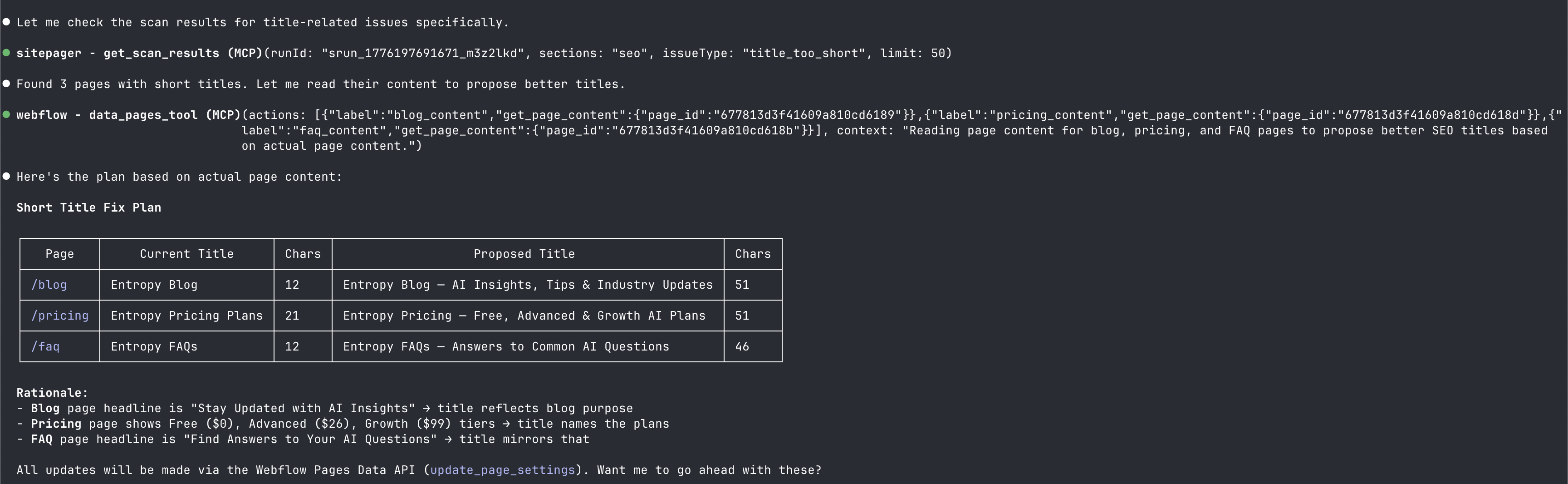
Section titled “SEO titles and metadata”For SEO issues, your assistant can read the actual page content via Webflow MCP before proposing fixes, so suggestions are based on what is actually on the page rather than guesswork.
Applying fixes in Webflow
Section titled “Applying fixes in Webflow”Your assistant applies the approved fixes via Webflow MCP. Page settings, links, headings, and alt text are updated directly in your Webflow site.
You can watch these changes appear inside the Webflow MCP Bridge panel in the Webflow Designer.
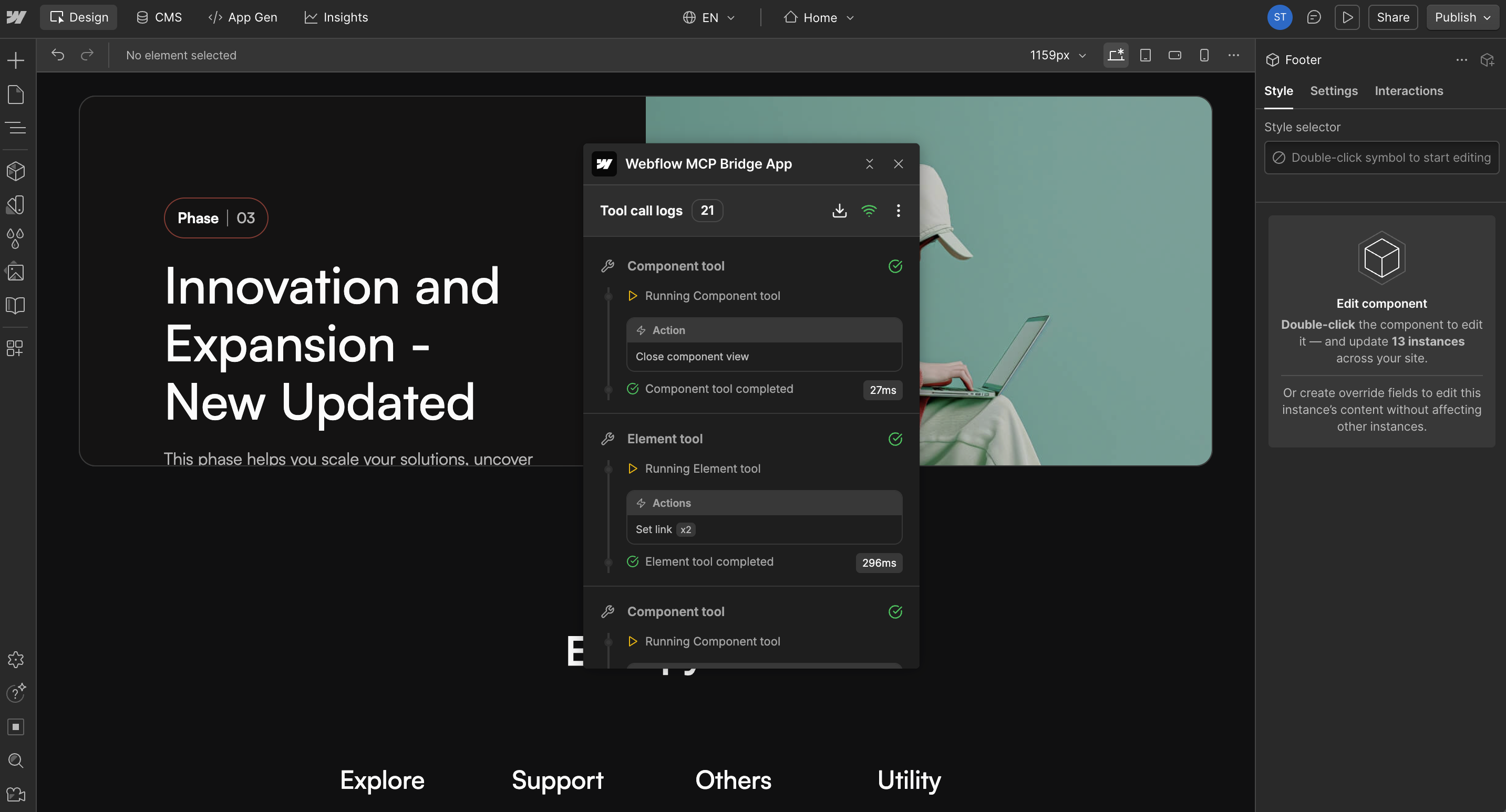
Once complete, your assistant confirms what was applied.
Publishing your Webflow site
Section titled “Publishing your Webflow site”Unlike codebase-managed sites where publishing might be automatic on deploy, Webflow requires an explicit publish step. Your changes won’t appear on the live site, or in the next Sitepager scan, until you publish.
Review the changes in the Webflow Designer before publishing. When you are ready, you can ask your assistant to publish, or publish manually from the Designer.

Setting a new baseline
Section titled “Setting a new baseline”Once your Webflow site scans clean, update your baseline in the Sitepager dashboard.
Baseline updates are not available via MCP, either Sitepager or Webflow, and need to be done from the dashboard.
What your assistant can fix via Webflow MCP
Section titled “What your assistant can fix via Webflow MCP”Many issues detected by Sitepager can be corrected automatically through Webflow MCP. Your assistant can typically fix page SEO settings (titles, descriptions, canonical URLs, Open Graph tags), broken internal and external links, heading structure issues, missing image alt text, and content or link updates in CMS items.
Some issues require manual work outside Webflow MCP. These include deeper performance optimizations, custom code changes, or server-level configuration. The scan results will still surface these issues so your team can investigate them.
Lighthouse reports
Section titled “Lighthouse reports”Sitepager can run Lighthouse audits as part of a scan. This is optional and not on by default. When enabled, the report includes scores for performance, accessibility, SEO, and best practices.
Your assistant can fetch these reports, review the scores, and suggest targeted fixes after reviewing your Webflow site. Here is what can and cannot be fixed via Webflow MCP:
Can be improved:
- Accessibility: missing alt text, heading hierarchy, form labels, and ARIA attributes
- SEO: missing titles, descriptions, canonical tags, and H1s
- Best practices: incorrect image aspect ratios, non-HTTPS links
Partially improvable:
- Performance: image formats and unnecessary custom scripts. Render-blocking resources, CSS structure, and server response times require changes outside MCP.
Cannot be fixed via Webflow MCP:
- Core Web Vitals optimizations such as lazy loading, CSS and JS bundling, font loading, and server response times.
To investigate a Lighthouse issue on a specific page, ask your assistant to fetch the full report from the latest scan run. Your assistant gets the actual data before recommending anything.
Use a prompt like this:
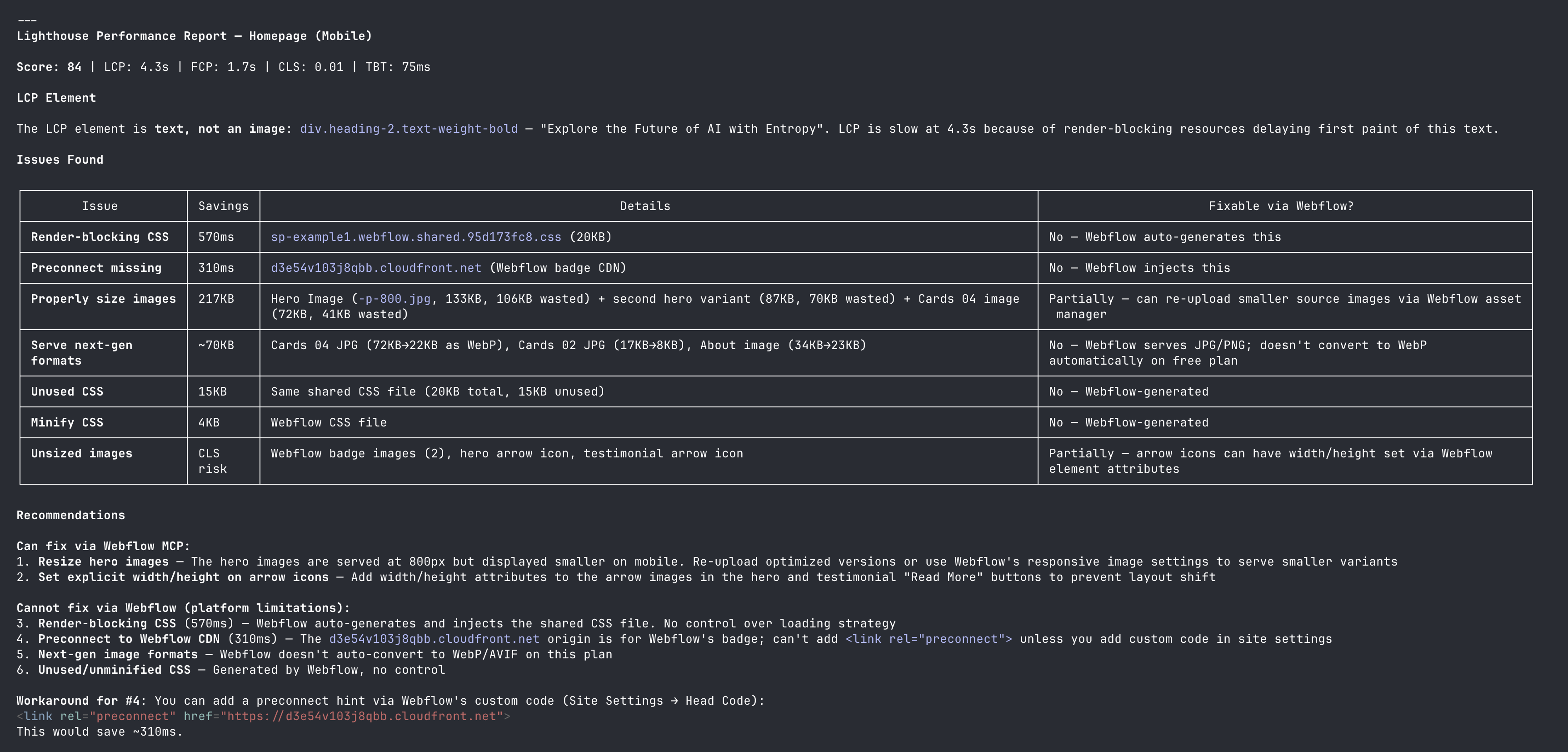
Run the scan again after any Lighthouse fixes and update your baseline when the results look right.
Next steps
Section titled “Next steps”Once your Webflow site scans clean and you’ve set a new baseline, the fix loop becomes part of your normal workflow. Run a scan whenever you make Webflow updates, review the results, and fix issues before publishing.
Beta feedback
The AI + MCP workflow is currently in beta.
If something doesn’t behave as expected or you have ideas for improving the workflow, send us a note at support@sitepager.io or through the in-app chat. Feedback during beta helps us improve the automation and documentation.